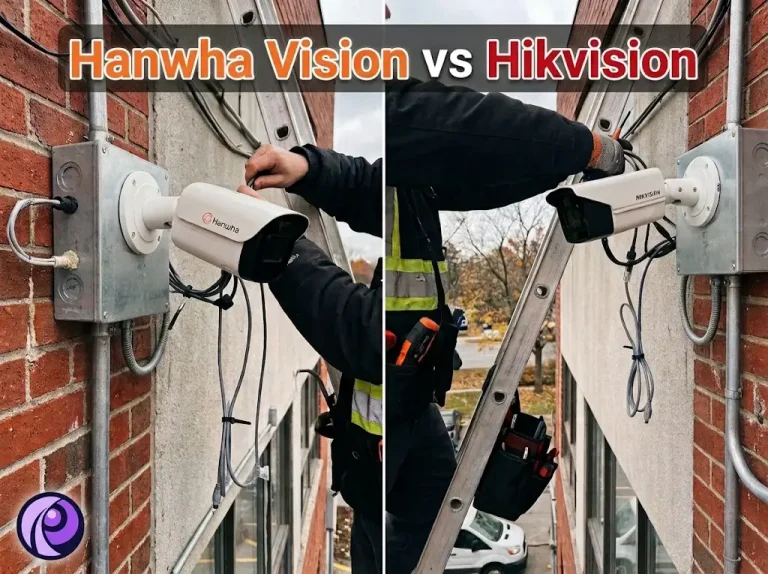
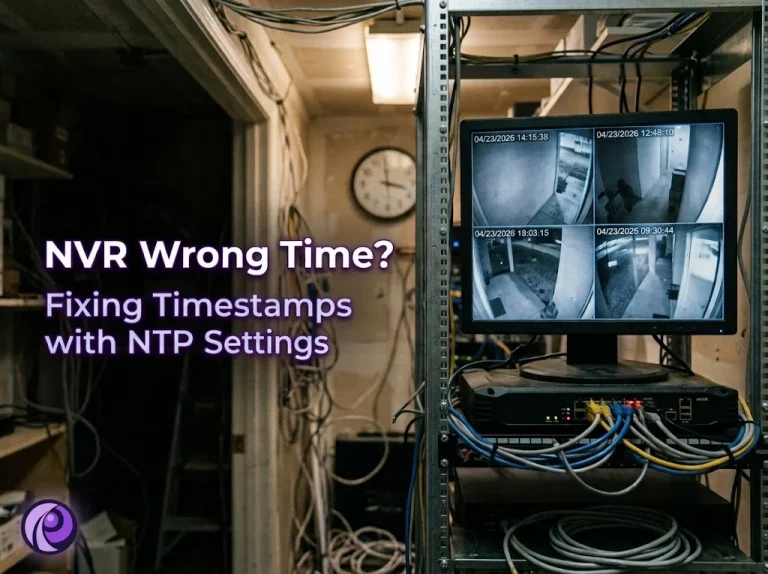
Clocks in Ontario fall back on Sunday, November 1, and every year that weekend brings a wave of recorders that are suddenly an hour out. A wrong clock looks like a small annoyance until you need the footage. Then a timestamp that doesn’t match the police report or the insurance claim gives someone a reason to doubt everything else in the clip. The fix is a few minutes in the Hikvision NTP settings, and this guide walks through them in order.
We set up and service Hikvision recorders across Toronto and the GTA, and time settings are one of the first things we check on any system we take over. The steps below cover the NVR, the cameras behind it, and what to do when the footage you need was recorded while the clock was off.
The short answer
Set the NVR’s time zone to (GMT-05:00) Eastern Time, turn on DST with the Canadian rules, and point NTP at Canada’s official time server, time.nrc.ca. Then sync the cameras to the recorder so the time burned into each image matches the timeline. If the clock still won’t hold after a power cut, the recorder’s backup battery is likely flat.
Why the Wrong Time on CCTV Footage Matters
A camera can capture a perfect image and still produce weak evidence if nobody can say exactly when it happened. Timestamps carry more weight than most owners expect:
- Police reports. Investigators line your clip up with 911 calls, other cameras and witness statements. Some police services ask on their video forms whether the timestamp is correct and, if not, by how much it’s off.
- Insurance claims. An adjuster comparing your footage to a break-in report will notice if the theft appears to happen before the alarm went off.
- Finding the clip at all. You search an NVR by time. If the clock is 47 minutes slow, you’re scrubbing through the wrong part of the night.
- Several cameras, one story. If each camera keeps its own time, a person walking from the driveway to the back door seems to jump around between clips.
For shops, offices and multi-unit buildings, where footage disputes can surface months after the incident, an accurate clock belongs on the commissioning checklist. It’s part of every commercial security camera installation we hand over.
Why Is My Hikvision NVR Showing the Wrong Time?
The size of the error usually tells you the cause. Check how far off the recorder is, then match it below.
| How far off | Likely cause | Fix |
|---|---|---|
| Exactly 1 hour, starting in March or November | DST is switched off or set to the wrong rules | Enable DST with Canadian start and end dates |
| Exactly 4 or 5 hours | Time zone left on GMT/UTC instead of Eastern | Set the time zone to (GMT-05:00) Eastern Time |
| A few seconds to several minutes, getting worse | No NTP sync, so the clock drifts | Turn on NTP and point it at time.nrc.ca |
| Back to an old factory date after a power cut | Flat clock battery and no NTP to correct it | Turn on NTP now; plan a battery replacement |
| NVR is right, but the time printed on one camera’s image isn’t | That camera keeps its own clock | Sync the cameras to the NVR (see below) |
The battery row is worth a closer look. Every NVR has a small coin cell that keeps the clock running while the power is off. Once it’s flat, any outage sends the recorder back to its default date. A battery backup stops most of those resets in the first place, and our guide to choosing a UPS for your NVR covers which equipment to put on it.
Hikvision NTP Settings: Step by Step
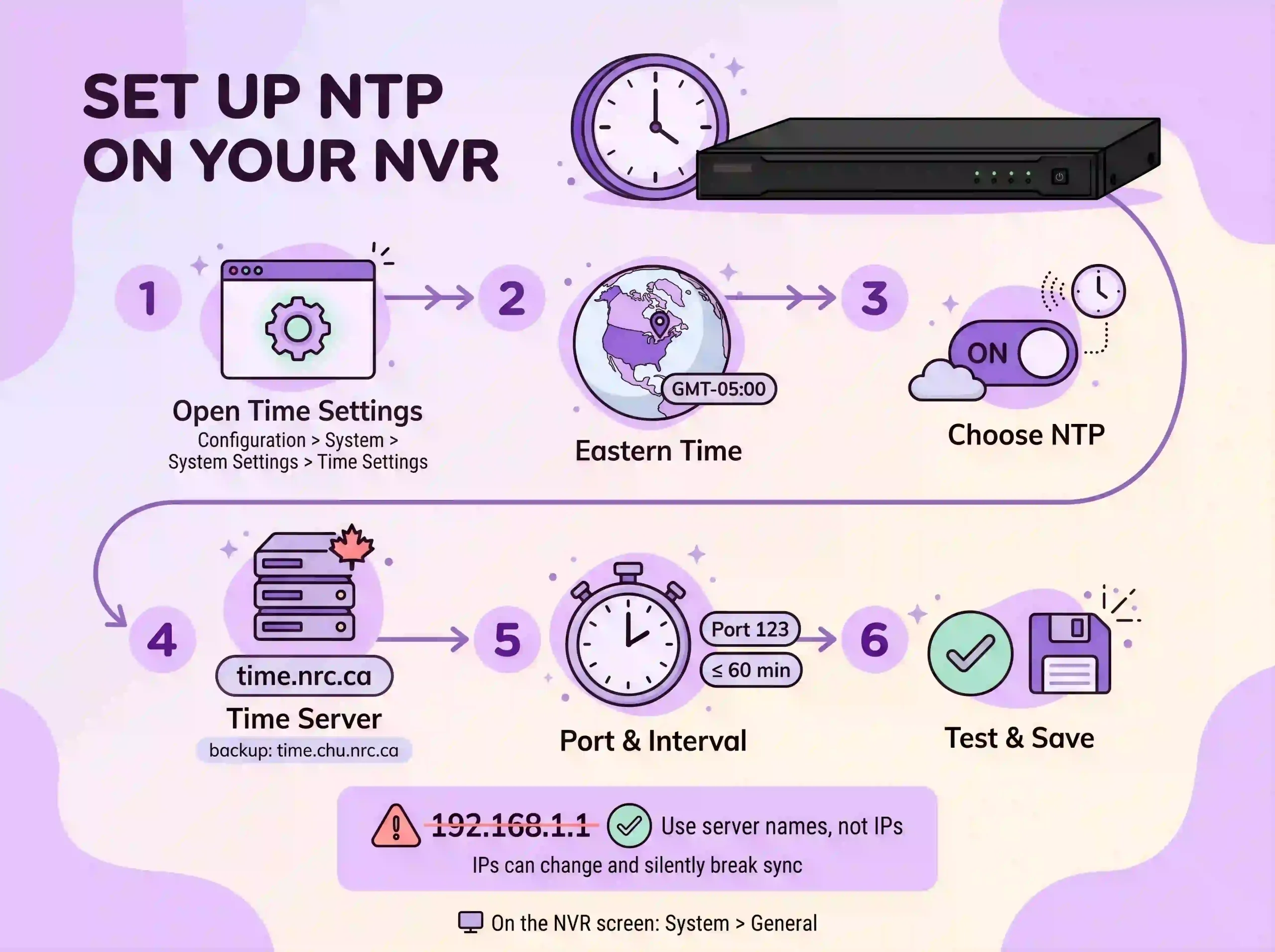
NTP (Network Time Protocol) lets the recorder check its clock against an internet time server and correct itself on a schedule. In the NVR’s web interface:
- Go to Configuration > System > System Settings > Time Settings.
- Set Time Zone to (GMT-05:00) Eastern Time (US & Canada).
- Under time sync, choose NTP.
- Enter time.nrc.ca as the server address. It’s run by the National Research Council, the keeper of Canada’s official time. time.chu.nrc.ca is a backup from a second NRC site.
- Leave the NTP port at 123 and set the interval to 60 minutes or less.
- Click Test if your firmware offers it, then Save.
On the recorder’s own monitor, time and DST sit under System > General on current firmware, or Menu > Configuration > General on older recorders. Enter server names, not IP addresses. The NRC notes that its IP addresses can change, and a hard-coded address that stops answering will quietly break your sync.
Daylight saving time settings for Ontario
NTP keeps the clock accurate, but the DST settings decide when it jumps. Tick Enable DST. If your firmware offers a DST Mode, Auto applies the rules for your time zone; in Manual, or on firmware without that option, enter these values:
| Field | Value for the GTA |
|---|---|
| Start Time | March, second Sunday, 02:00 |
| End Time | November, first Sunday, 02:00 |
| DST Bias | 60 minutes |
You may have read that parts of Ontario are dropping the twice-yearly change. That plan covers some northwestern communities near Kenora that keep Manitoba’s time. Toronto and the GTA still change their clocks, so DST stays on here.
NVR Time Sync: Making the Cameras Follow the Recorder
This is the step people miss. The NVR stamps its own time on the timeline, but each camera burns its own clock into the image as an on-screen overlay. When they disagree, one clip shows two different times, and a defence lawyer or adjuster will notice.
On current NVR firmware, go to System > Device Access > Device Configuration > Batch Configuration. Use Sync Time Now to set every connected camera from the recorder in one go, then turn on Schedule Time Sync so they stay aligned. On older recorders without that page, log into each camera and set its own Time Settings to the same NTP server and time zone as the NVR.
One more setting can override all of this. Under the Hik-Connect settings, newer firmware offers Platform Time Sync, which makes the recorder take its time from Hik-Connect instead of your NTP server. If NTP looks correct but the clock keeps changing, check whether that option is on.
CCTV Timestamp Wrong on Footage You Already Need
You can’t rewrite the time on a recording, and you shouldn’t try. Edited files invite the very doubts you’re trying to avoid. What you can do is document the error so anyone reviewing the footage can correct for it.
- Don’t fix the clock yet. Export the incident footage first, while the system is in the same state it was when it recorded.
- Measure the offset. Open the NRC’s online clock on your phone next to the NVR’s live view and take a photo with both in the frame.
- Write it down. Note the date, the recorder time, the official time and the difference, for example “NVR 6 minutes 20 seconds slow.” Hand that note over with the footage.
- Then correct the clock using the steps above, and record the date you did it.
We check the clock against official time at the handoff of every residential security camera installation. It’s far easier to get right on day one than to explain after a break-in.
When to Call a Technician
Most time problems are settings you can fix in ten minutes. Our security camera installation technicians handle the ones that aren’t, and it’s worth calling when:
- The clock resets after every power cut even with NTP on, which points to a flat battery and a recorder that can’t reach the time server at startup. Hikvision’s manual directs battery replacement to after-sales service.
- NTP shows as failed because the recorder sits on an isolated network or behind a firewall that blocks time traffic.
- You run several recorders or sites and need them all on one consistent time.
- You need incident footage exported for police or an insurer and can’t afford to get the handling wrong.
Need Your Footage to Stand Up? We Can Help
Recorder won’t hold the right time? Need incident footage exported properly for police or your insurer? We can usually sort both out in one visit. We service Hikvision systems across Toronto, North York, Markham, Vaughan, Mississauga and the rest of the GTA. Book a service visit or call us.