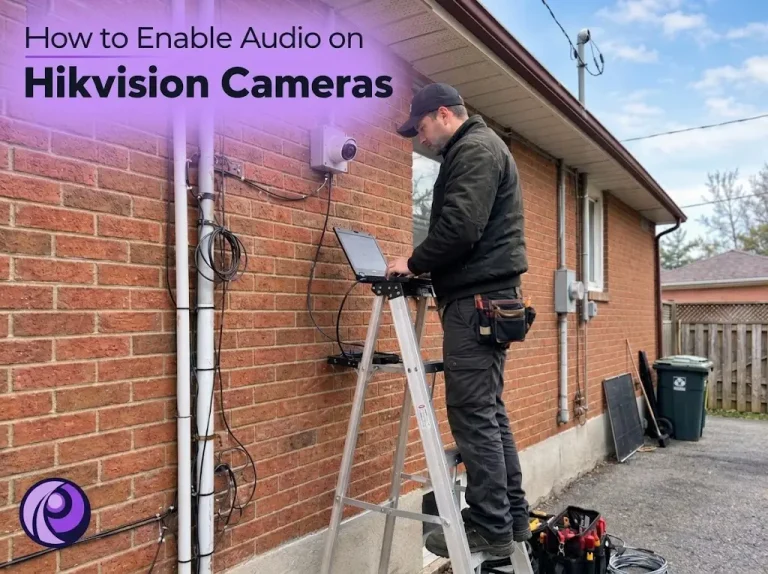
You bought a camera with a microphone, the picture is sharp, and yet playback is dead silent. That’s one of the most common calls we get, and it’s rarely a broken mic. On most Hikvision systems, sound has to be switched on in the camera’s stream settings and again in the recorder’s schedule. Skip either step and you get video with no audio. This guide shows you how to enable audio on a Hikvision camera from start to finish, then works through the faults that keep sound from coming through.
We set up and service Hikvision systems across Toronto and the GTA every week, and the steps below are the same ones our technicians run through on site. Menu names shift a little between firmware versions, but the logic holds on current cameras and NVRs.
Before You Start: Does Your Camera Have a Microphone?
No setting will produce sound from a camera that has nothing to pick it up. Plenty of Hikvision models are video only, so this is worth checking before you spend time in menus.
- Check the datasheet. Search the full model number on Hikvision’s site; a built-in mic is listed under Interface as “Built-in Microphone: Yes.”
- Look at the suffix. On many current models, a U near the end of the model number (for example -LU or -IU) signals a built-in mic. It’s a useful hint, not a guarantee, so confirm with the datasheet.
- Look for an audio input. Some cameras have no mic but do have an audio-in lead, which lets you connect an external microphone.
Two-way audio needs a speaker as well as a mic. A camera with a microphone alone can record sound, but you won’t be able to talk through it.
How to Enable Audio on a Hikvision Camera
Start on the camera itself, through its web interface. You’ll need the camera’s IP address and admin password; the SADP tool or your NVR’s camera list will show the address.
- Type the camera’s IP address into a browser and log in as admin.
- Go to Configuration > Video/Audio > Video.
- With Main Stream selected, change Video Type from Video to Video & Audio, then click Save.
- Switch the stream to Sub-Stream and do the same. Hik-Connect’s Basic mode plays the sub-stream, so leaving it video-only is a classic reason sound works on a PC but not on your phone.
- Open the Audio tab and review the settings below, then save again.
- Go to Live View, click the speaker icon and turn the volume up. You should hear the room.
Hikvision audio setup: what each option does
The Audio tab only has a handful of settings, but each one can be the difference between clear sound and nothing at all.
| Setting | What it does | What we usually choose |
|---|---|---|
| Audio Encoding | The codec used to compress sound. Options vary by model, typically G.711, G.722.1, G.726, MP2L2, PCM and AAC. | G.711 (ulaw or alaw). It’s the most widely supported, which matters with third-party recorders and software. |
| Audio Input | MicIn is for low-level sources such as a built-in or plain microphone. LineIn is for amplified sources such as an active mic or mixer. | MicIn for a built-in mic. If the sound is faint or distorted, the input type is the first thing to check. |
| Environmental Noise Filter | Filters out some steady background noise. | Test it both ways. It can cut out fan or traffic noise, but on some cameras it adds a faint hum or thins out voices. |
| Audio Output | Switches the camera’s speaker on and sets its volume (two-way audio models). | On, with volume set during a test call. |
How to Record Audio on a Hikvision NVR
Once a camera is connected to a recorder, the NVR decides what gets saved. Turning audio on at the camera isn’t enough; the recorder has to be told to keep it. In the NVR’s web interface:
- Go to Configuration > Video/Audio and pick the camera.
- Set Video Type to Video & Audio for Main Stream (Normal), then save.
- Repeat for Main Stream (Event) and Sub-Stream. Event recordings use their own stream, so a missed setting here gives you sound on continuous footage but silence on motion clips.
- Go to Storage > Storage Schedule, click Advanced, tick Record Audio and save.
- Repeat for every camera you want sound from.
On newer NVR firmware the same option sits under System > Storage Management > Storage Schedule > Video Recording, in the camera’s advanced settings. One thing to know before you test: footage recorded before you made these changes has no audio track, and nothing can add it afterwards. Check a fresh recording.
CCTV No Sound on Playback? Check These First
When live view has sound but recordings don’t, the problem is almost always on the recorder side. Match what you’re seeing to the table below.
| What you see | Likely cause | Fix |
|---|---|---|
| Live view has sound, playback is silent | Record Audio is off in the storage schedule | Turn on Record Audio for that camera and save |
| Continuous footage has sound, motion clips don’t | Main Stream (Event) is still set to Video only | Set the event stream to Video & Audio |
| Old recordings are silent, new ones are fine | Those clips were recorded before audio was enabled | Nothing to fix; earlier footage simply has no audio |
| Sound on the NVR monitor but not in Hik-Connect | Sub-stream is video only, or the app’s speaker icon is muted | Enable audio on the sub-stream and tap the speaker icon in the app |
| Playback is silent on a PC | Playback audio is muted, or the PC has no output device | Click the speaker icon in the playback toolbar and check Windows sound settings |
Security Camera Audio Not Working at All
No sound anywhere, not even in the camera’s own live view? Work through these in order. Most fixes take a couple of minutes.
- The model has no mic. Recheck the datasheet. This accounts for more no-sound calls than any setting.
- The stream is still video only. Audio is off by default on many models, and a factory reset puts Video Type back to video only.
- Wrong input type. MicIn and LineIn expect very different signal levels. The wrong one gives you near silence or harsh distortion.
- Unsupported codec. If a third-party NVR or video software shows the picture but no sound, set the camera to G.711. Codecs like AAC aren’t supported everywhere.
- Old firmware. Audio bugs do get fixed in updates. Download firmware only from Hikvision’s official portal for your exact model.
- A blocked mic. Mic holes on outdoor cameras collect dust, spider webs and ice. A gentle clean can bring the sound back.
Two-Way Audio Not Working on a Security Camera
Two-way audio adds a speaker and a talk button to the mix, so there are a few more things that can go wrong. In the browser, the two-way audio icon sits on the live view toolbar; in Hik-Connect, it’s the talk button in the live view controls.
- No speaker on the camera. Talk-back only works on models with a built-in speaker or a connected one.
- Phone permissions. Hik-Connect needs microphone access on your phone. If you tapped Don’t Allow once, re-enable it in your phone’s settings.
- Speaker turned off. Check that Audio Output is enabled on the camera’s Audio tab and the volume isn’t at zero.
- Someone else is already talking. Hikvision allows one two-way audio session per device at a time. If another phone or PC has talk-back open, yours will fail to start until they close it.
- Echo or squealing. Lower the camera speaker volume, or step away from your phone’s speaker while you talk.
- Choppy or delayed voice. Talk-back depends on upload speed at both ends. A weak Wi-Fi bridge or a busy connection will cut words off.
Recording Audio on Security Cameras: What Canadian Law Allows
Turning the mic on is the easy part. Canadian law treats sound far more strictly than video, though, so read this before you do.
- The Criminal Code. Section 184 makes it an offence to knowingly intercept a private communication with a device. The key exception is consent from someone taking part in the conversation. Recording a call you’re part of is allowed. Recording strangers chatting on your porch is a different matter.
- Privacy guidance for businesses. The Office of the Privacy Commissioner’s guidelines for private-sector surveillance say sound should not be recorded unless there is a specific need. They also point out that a camera capturing sound brings the Criminal Code into play.
- Workplaces in Ontario. Employers with 25 or more employees must have a written electronic monitoring policy under the Employment Standards Act. Audio in staff areas raises far more questions than video does.
For most homes, a sensible line is two-way audio at your own front door and the mic switched off everywhere else. That’s how we set up front-door cameras on most residential security camera installation projects. If your mic would pick up a sidewalk, a shared hallway or the neighbour’s yard, leave audio off. This is general information, not legal advice.
When to Call a Technician
Most audio problems are settings. Some aren’t, and chasing those through menus wastes an afternoon. Our security camera installation technicians fix these on site every week, and it’s time to bring someone in when:
- Sound cut out after a storm, power surge or water getting into the housing.
- You hear constant hum or buzzing on an externally wired microphone, which usually points to cabling or grounding.
- Audio works on some cameras and not others, and the settings are identical.
- You’re adding microphones to a business and need the placement, signage and policy right from day one.
Has the mic itself failed while the camera is still under warranty? Claims now go through your installer or distributor, and our guide to Hikvision support in Canada explains how that works since the local office closed. For offices, shops and multi-unit buildings, our commercial security camera installation team handles audio as part of a properly documented system.
Still No Sound? Let Us Take a Look
Worked through all of this and the speaker icon still gives you nothing? A technician can usually find the cause in one visit. It might be a setting buried on the recorder, a failed mic or a wiring fault. We service Hikvision systems across Toronto, North York, Markham, Vaughan, Mississauga and the rest of the GTA. Book a service visit or call us.